
The app
The app is the hub: it talks to the simulator, holds the task, sends to the group, and runs the local web server that the map, Mini FC and the in-game panels live on. You operate it through eight entries in the left-hand column.
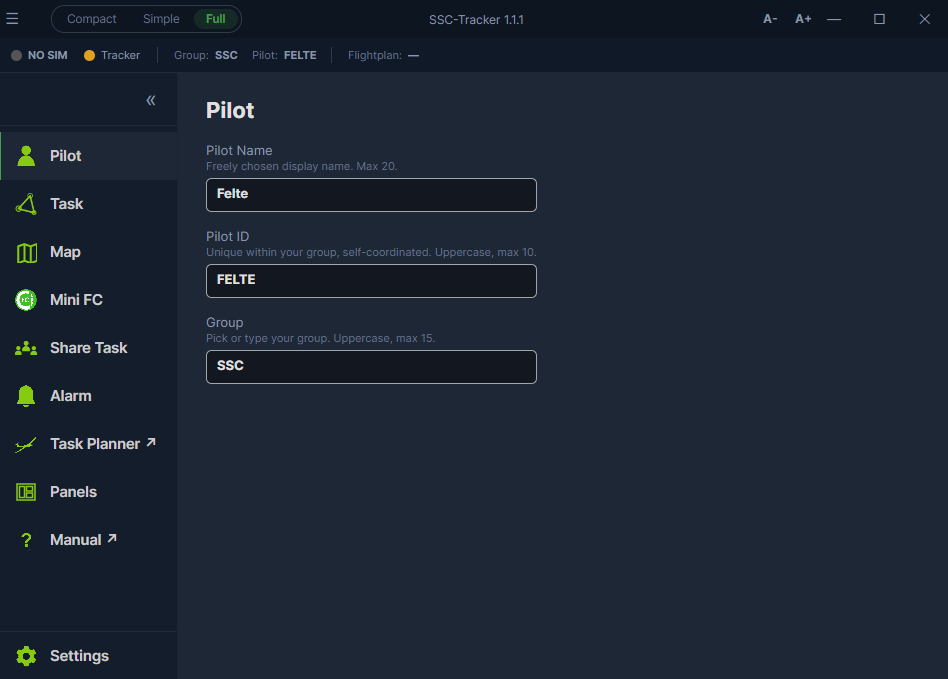
Title bar and status line
Top left is the ☰ menu: the two tours, About & Licenses, Connections. Beside it two lamps - one for the connection to the simulator, one for the tracker status (grey: off, yellow: listening only, green: sending). On the right a three-way switch: Compact shrinks the window to the status line and task loading, Simple shows only the important pages, Full shows everything. When a new version is ready, an update button appears in the title bar.
Below that the status line, with what you want to know in flight without changing tab:
| Field | Content |
|---|---|
| Group | Your group |
| Pilot | Your ID |
| Flightplan | Name of the loaded task, otherwise "-" |
| Weather | The weather preset of the task, if one came with it |
Task and Map take you straight to the map and to the task description of the task your group shared or you loaded.
Pilot
Name, ID and group - see Getting started.
Task
The active task.
- Load .pln / .igc / .zip… opens a flight plan from the B21 Task Planner, an IGC recording, or a whole zipped set of IGC files for a reflight of a group flight (ghost flight).
- Available from other sources lists tasks coming in from elsewhere - one click takes one over. Where they can come from is described in Tasks.
- Clear throws the task away, Reset progress puts your running task back to the start (time and turnpoints) - handy when you fly the same task again or have to restart.
- Set logger to current task pushes your task into the NB21 logger.
Beside it, the preview with the turnpoint list, AAT sectors and start/finish line, and the map of the whole route.
Preflight
Your planning mode before take-off: route, terrain profile, wind. Open in browser puts the same page into a window of its own - for a larger overview. This is where you can study the terrain profile in 3D and plan a route of your own, which is then shown on the maps.
Share Task
This is where the task setter shares a task with the group.
- Create the group. The first time, the group needs a password ("secret", at least eight characters). Whoever knows it may set and delete the group's task - it takes the place of a login.
- Pick a .pln and, optionally, a weather preset (.wpr) and an info URL with the task description.
- Share. From then on everyone in the group sees the task under Available from other sources.
Delete removes the shared task again, Reset puts the progress of all group members back to the start - which can make sense shortly before the launch.
Ghost
With the ghost function you can replay one or more soaring flights recorded by the NB21 logger (IGC log file) as AI aircraft in MSFS. The ghosts fly the recorded route in the simulator, synchronised to the start; you see them on the map and, if you want, in MSFS.
Loading a ghost
- In the Task tab click Load .pln / .igc / .zip… - the file dialog opens.
- Instead of a .pln file, pick an .igc file, or a zip containing .igc files.
- SSC-Tracker loads it, extracts the task, and shows a new Ghost tab in the main window.
- The Ghost tab shows the details of the recording:
| Field | Description |
|---|---|
| Logger | Type and firmware of the flight logger |
| Glider | Glider type and class |
| Callsign / Name | Competition ID and pilot name |
| Start time | Start time of the flight (UTC) |
| End time | End time of the flight (UTC) |
| Trackpoints | Number of GPS points in the recording |
| Task time | Task time from start to finish |
| Speed avg. | Average task speed |
| Flown/tsk dis. | Distance flown (total / task) |
Activating a ghost
- Start MSFS and fly your own aircraft to the start point of the task as usual.
- In the Ghost tab click "Show Ghost" if you want to see a limited number of AI aircraft in the simulator.
- Pick the aircraft model for the ghost from the drop-down list (it shows the MSFS aircraft you have installed).
- The ghost appears as an AI aircraft in the simulator and starts replaying the recorded flight alongside you as you cross the start line.
Note: MSFS must be connected and your own aircraft positioned on the runway before the ghost
is activated.
Time offset (Diff Time)
The Head up field sets the time offset between your flight and the ghost:
- Value 1 = the ghost starts at the same moment you do.
- Other values = the ghost starts x seconds before or after the original's task start. This lets you synchronise yourself to a particular point of the recorded flight, for example when you are flying too far ahead of or behind the ghost.
The maximum is the total task time of the loaded IGC log.
The ghost on the map
While the ghost is active, it appears in the SSC-Tracker map as an additional aircraft with a symbol of its own. That way you can compare your current flight directly with the recorded route.
Switching a ghost off
Switch "Show Ghost" off in the Ghost tab - the AI aircraft is removed from the simulator.
Alarm
Sounds and thresholds, so that you do not have to stare at numbers. At the very top it says which aircraft was recognised - VNE and maximum weight depend on it.
| Alarm | What it does |
|---|---|
| VNE warning | Beeps as you approach VNE. The margin (knots below VNE) can be set, as can the pitch. |
| Stall warning | Takes over the simulator's stall warning. |
| Weight warning | Reports overloading (water ballast). |
| Task beeps | Acknowledges start, turnpoint and finish. |
| Beep volume | Volume of all signals. |
Panels
Everything that appears inside the simulator - the three packages, their installation per simulator, and the layout of the Overlay. In detail in MSFS In-Game Panels.
Settings
Sorted into groups:
- Appearance - dark mode (the default) or the light theme.
- Units - height, distance, speed and climb, each metric or imperial. The setting applies everywhere: app, map, Mini FC and Overlay.
- General - autostart with Windows, NB21 logger sync, map refresh rate, copying shared tasks into the MSFS folders, folder for the task history, simulator sampling rate, "Hide tactical data" (do not share MC, ballast and average), 4-character pilot ID for large groups, chase HUD on the map, and the SimBrief ID.
- MSFS folders - Community and weather preset folders of both simulators. If the tracker does not find them, you enter them here. The packages themselves are installed in the Panels tab.
- Elevation - load terrain data automatically, inspect and clear the cache.
Compact - the small window
The left button of the switch in the title bar shrinks the app down to the essentials: status line and task loading. For the second monitor, or beside the cockpit, when all you want to know is whether group, task and connection are up. The same button brings the full window back; your choice is kept until the next start.