Getting started
Quick start
Get going with these few steps.
- Download SSC-Tracker and unpack it into a folder. Alternatively use the SSC-Installer
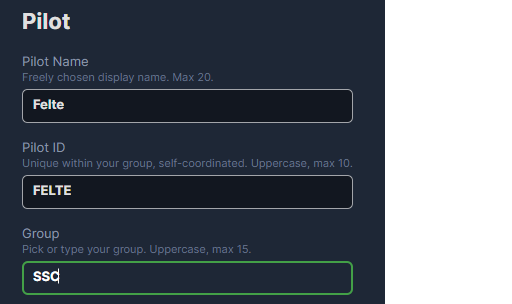
- Run SSC-Tracker.exe and confirm the security prompt for the app and the firewall prompt for the port (55055) - without them SSC-Tracker cannot work. Then enter:
- Pilot Name: your name or nickname.
- Pilot ID: a short, unique ID within your flying group (no special characters, no spaces).
- Group: a short, unique ID for your flying group. You only see aircraft from this group (no special characters, no spaces).
- SSC-Tracker connects to MSFS by itself and sends your flight to the server (blinks green). With no simulator running, SSC-Tracker works in spectator mode and shows the group you have set without sending any flight data of your own (blinks yellow).
- Open ssc-tracker.org, or the map from the app in a browser, to see the aircraft of your group.
First start
The very first time you start the app, it walks you through the essentials:
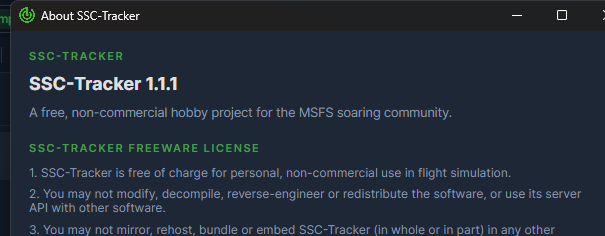
- Notice window. To be confirmed once: hobby project, licence, fair use, credits. If you close it without confirming, you will see it again at the next start.
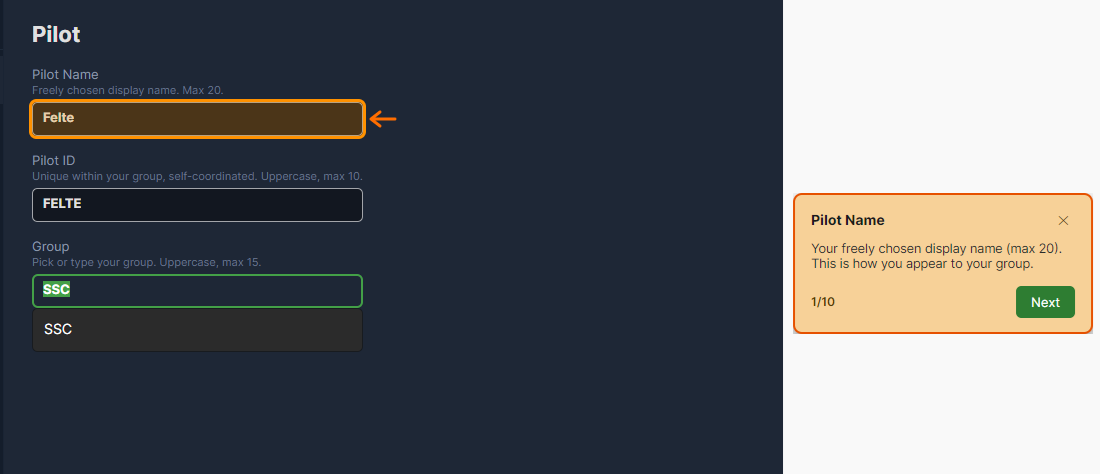
- Onboarding tour. Shows the required fields one after another - Pilot Name, Pilot ID, Group - and then the way to the task and to the map. Each step rings the field in orange, and the card beside it explains what it is for.
- Panel tour. Walks through the Panels tab: the three in-game packages, the tick boxes per simulator, the Community folder and the Overlay layout.
Both tours can be repeated at any time: ☰ → Onboarding Tour and ☰ → Panel Tour. The ✕ in the card always closes them.
Identity: pilot, ID, group
Three entries, and that is all it takes:
| Field | What it means |
|---|---|
| Pilot Name | Your display name, up to 20 characters, yours to choose. This is how you appear in the group. |
| Pilot ID | Your tag, capital letters, up to 10 characters. The map shows the first 3 of them (can be set to 4 in the settings). It has to be unique within your group - agreed among you, not assigned: there is no sign-up. |
| Group | Everyone who has entered the same group sees each other. Like a radio frequency: change it whenever you like, and the change takes effect at once. |
Without these three entries the tracker sends nothing - and you will not see the others either.
Port and network
The app brings its own web server on port 55055. That is where the map, Mini FC, Preflight and the in-game panels get their data - locally, without a detour through the internet.
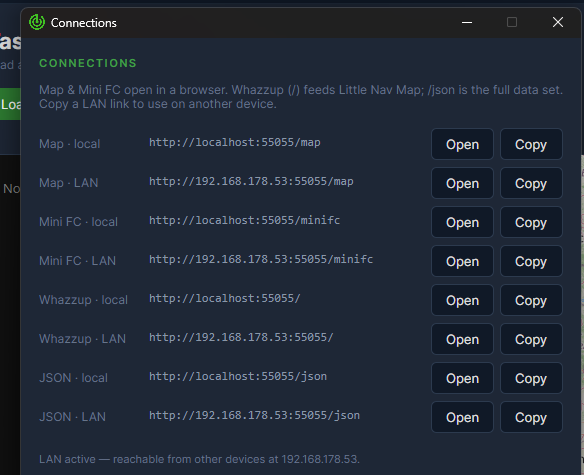
A second device on the network. ☰ → Connections gives you every address twice: once for this PC (localhost) and once for the network (your machine's LAN IP). Open the LAN address in the browser of a tablet and you have a second screen. If it says LAN access is off, one click on Enable LAN access is enough - one admin dialog, and other devices can reach the PC.
When the port is taken. Port 55055 sits in the range Windows hands out to any program for outgoing connections, so another program may have grabbed it before the tracker did, and map, Mini FC and panels stay empty. The app says so and offers to reserve the port permanently for itself: one click, one admin confirmation, done. More on this in When things go wrong.
Connection options
SSC-Tracker has a built-in web server with several options for pulling flight data into the tools of your choice. All connection options, in their various formats, are listed in ☰ → Connections.
For reference or to copy and paste: